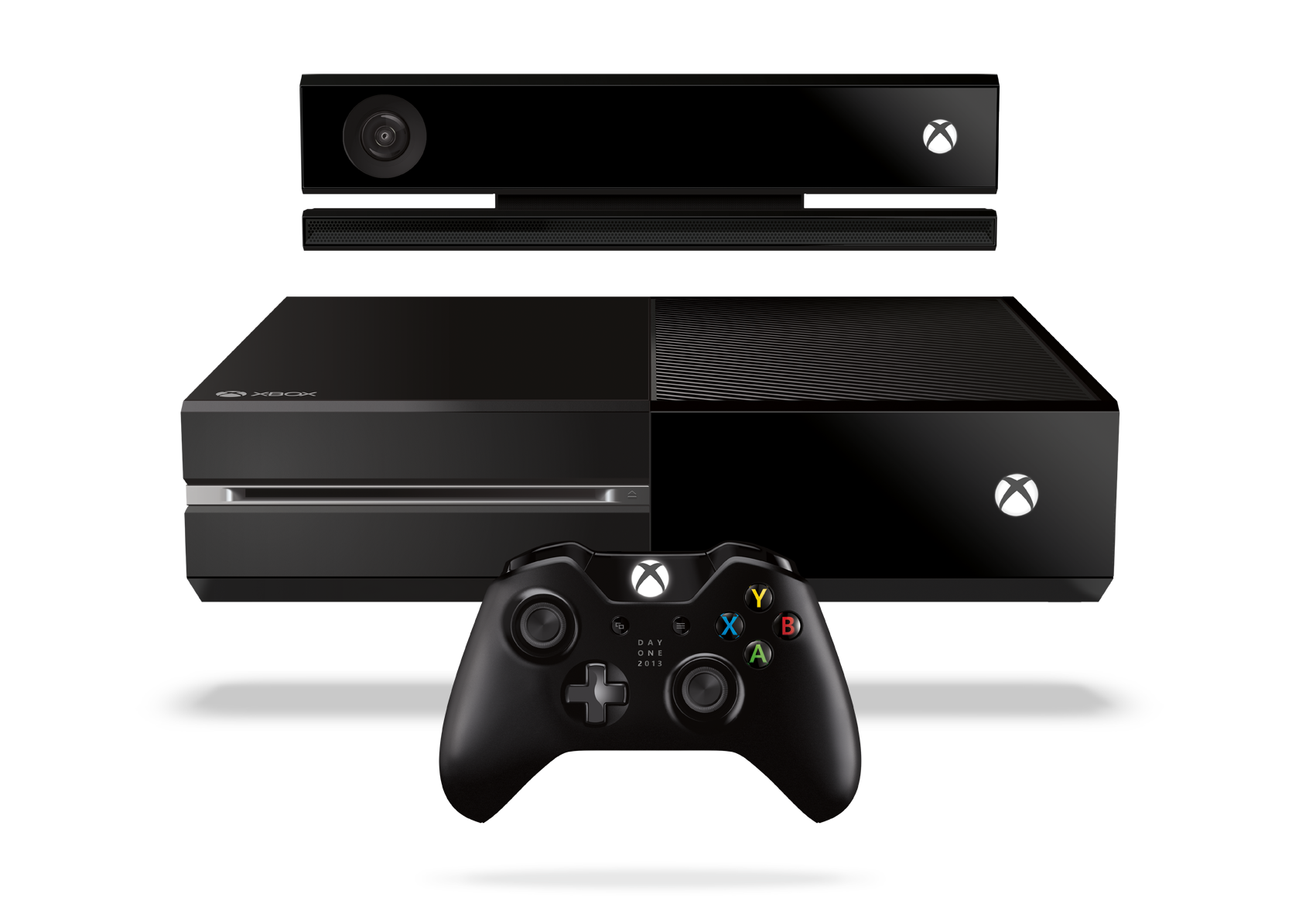
Xbox One Game DVR: Creating the Future of Gaming Content
User Experience Program Manager, Xbox One Launch Team
Microsoft | 2013-2014
The Role
Proud member of the Xbox One Launch Team. As User Experience Product Manager, I led the Game DVR feature team, creating content creation and consumption experiences for gamers and game developers. I drove Xbox sharing experiences to destinations like Twitter and OneDrive—building the social infrastructure for a new generation of gaming.
What I Built
Game DVR - The foundational feature that let any Xbox One player capture their gaming moments automatically. No capture card required—just play, and your last few minutes were always saved and ready to share.
Screenshots - A highly requested feature from the Xbox Feedback community. Players could capture screenshots by double-tapping the Xbox button and pressing Y, or by voice command: "Xbox, Take a Screenshot."
Twitter Integration Designed the Share button experience that let players compose and post game clips directly to Twitter from their console, bringing Xbox moments into mainstream social conversation.
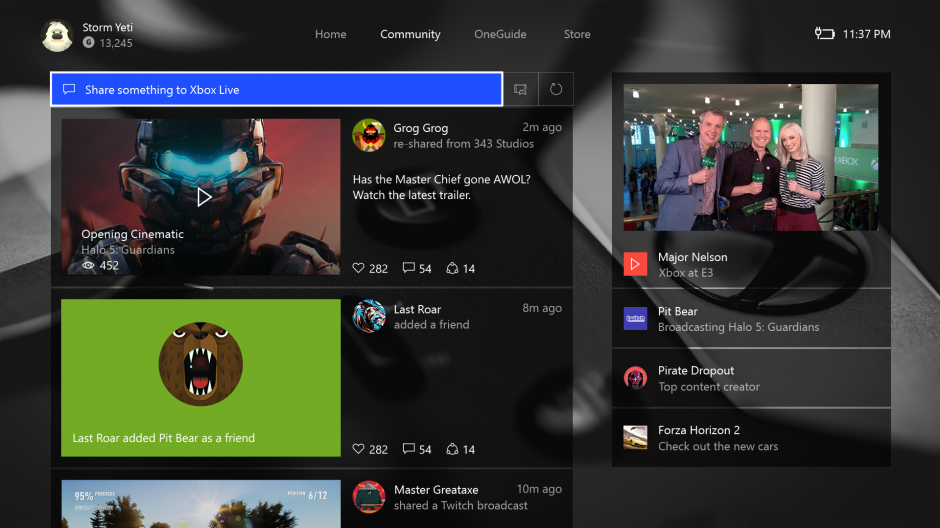
Community Section Redesign Built the new Community hub that made Xbox One more social:
Activity Feed - Redesigned to show what friends were playing and sharing
Trending Section - Surfaced the most popular posts, clips, screenshots, and achievements across Xbox Live
Cross-Platform Access - Available on Xbox One console and Xbox app
Customizable Recording Length Responding directly to Xbox Feedback, we gave players control over their DVR recording duration: 15 seconds, 30 seconds, 45 seconds, 1 minute, 3 minutes, or 5 minutes. Players could adjust preferences in Settings → Preferences → Game DVR & Streaming.
My Impact
Led the team that transformed gaming from a private experience into shareable content. By making capture effortless and sharing seamless, we enabled a generation of gaming creators and helped Xbox compete in the emerging creator economy. Every feature decision was informed by community feedback, ensuring we built what players actually wanted.
Product Launch
Shipped with Xbox One console launch in November 2013, with continued feature updates through 2017.